How to Process Payments for Contractors


How to Process Payments for Contractors
Ensuring timely payments for contractors is essential for maintaining positive working relationships and smooth operations. Follow these steps to process contractor payments efficiently!
1. Navigate to the Payment Section
Start by accessing the 'Payment' section of your management system or financial software. Look for the option labeled 'Pay Contractor.'
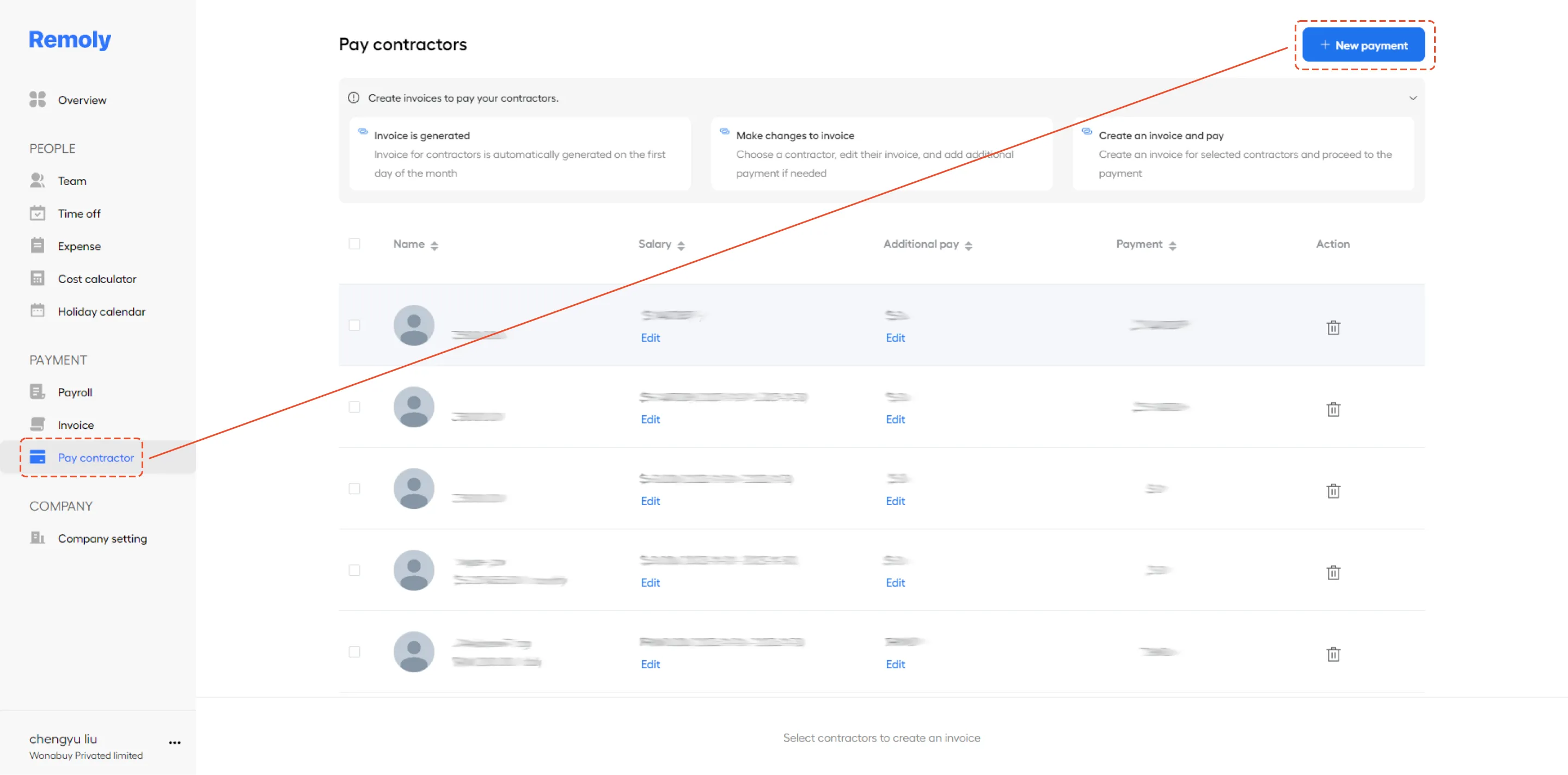
2. Initiate a New Payment & Provide Payment Details
Click on 'New Payment' to begin the payment process. This will open a new payment transaction form where you can enter payment details.
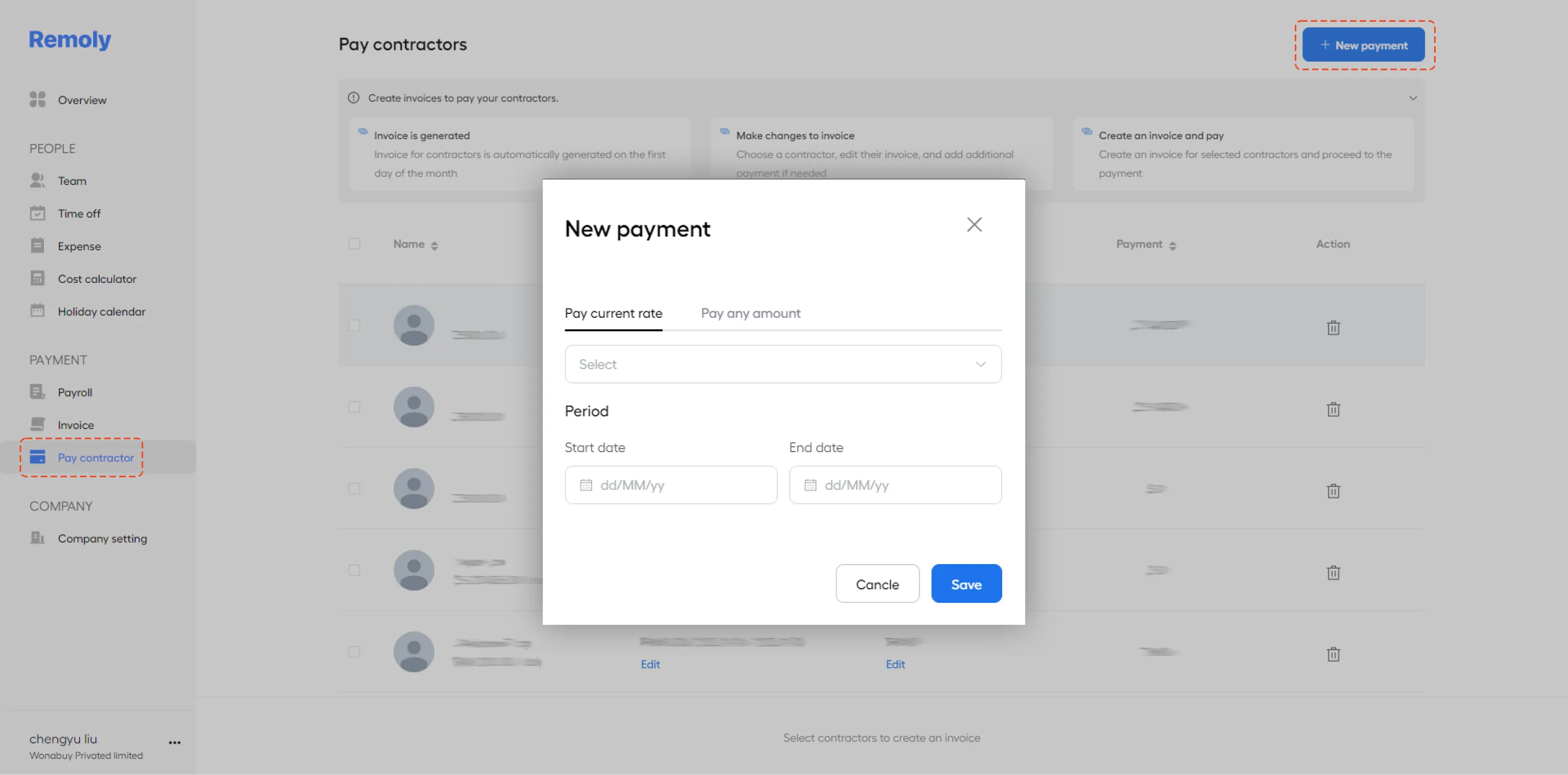
You have the option to pay either at the current rate or by any amount.
- Pay Current Rate
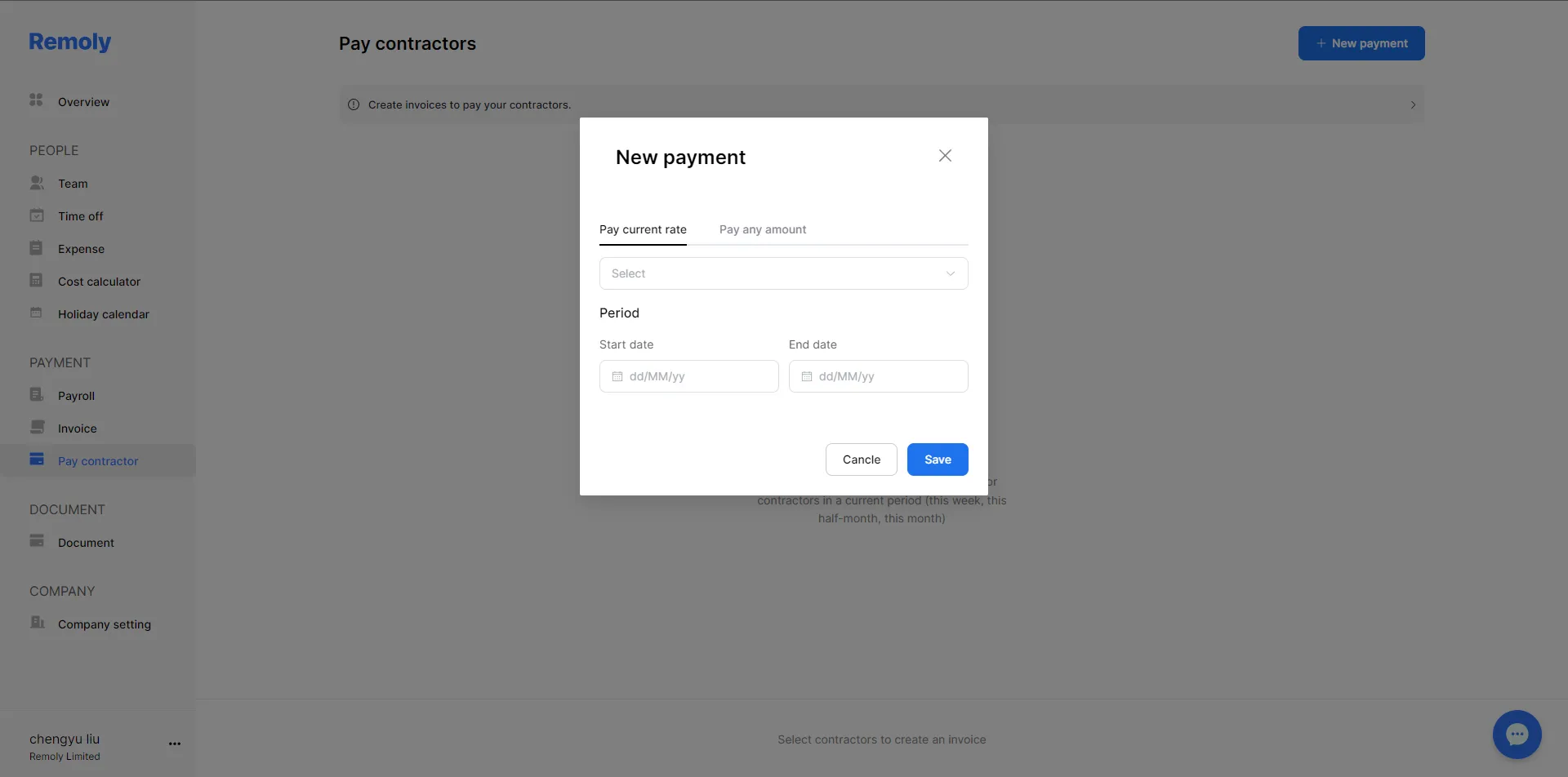
Paying at the current rate allows employers to set a fixed salary for employees. Employers can easily update the salary amount, currency, and payment mode by accessing the employee's profile, ensuring smooth global payroll solutions management.
Alternatively, for employees with a fixed salary amount, employers should access the 'Compensation' section of the employee profile to enter the correct currency exchange rate, exact salary amount, and payment frequency. Simply select the employee and input the pay period to complete the process. See the detailed instruction about Extra Compensation.
- Pay Any Amount
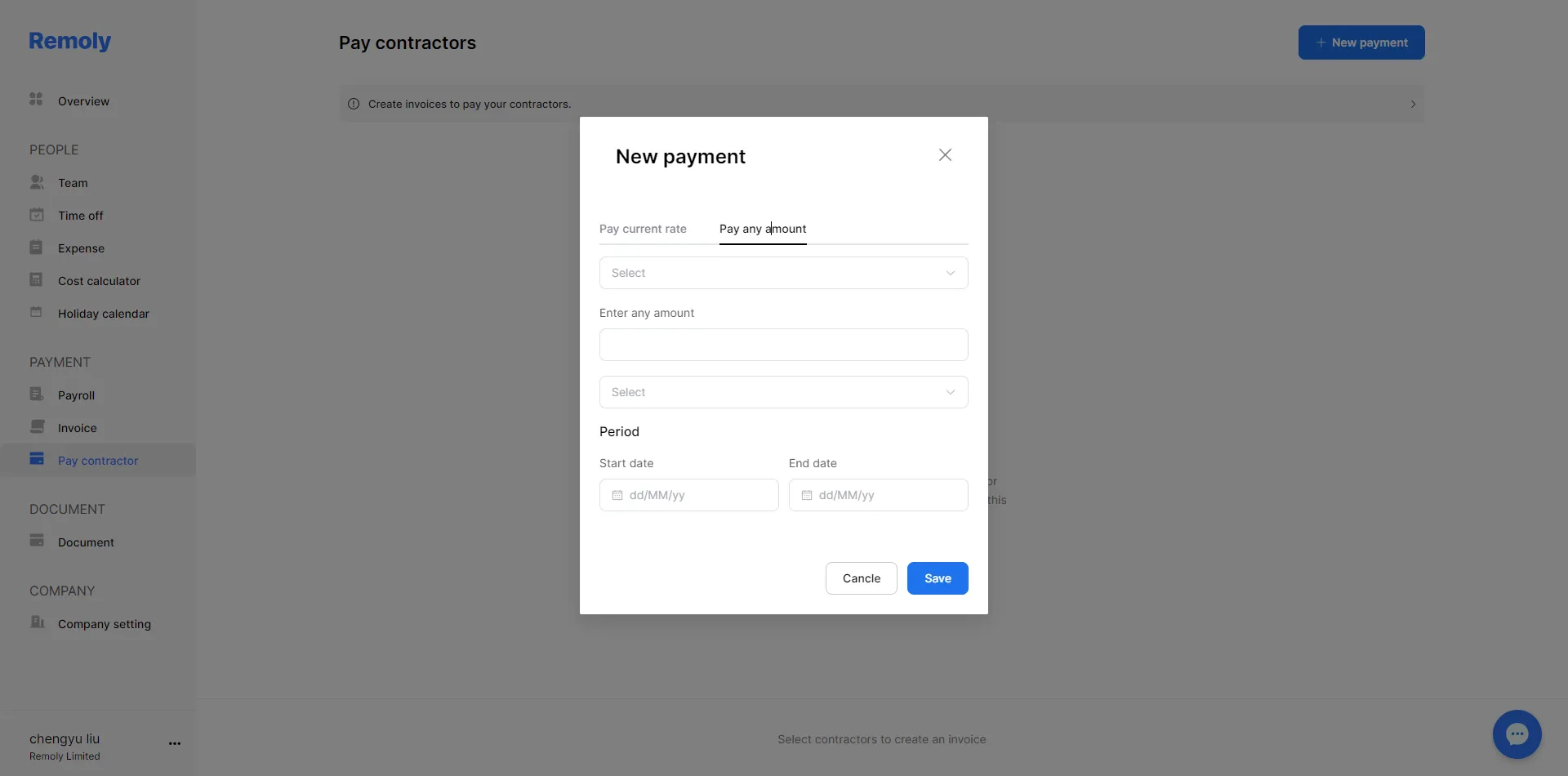
On the other hand, paying by any amount allows employers to set a flexible payment. For instance, they can use their own currency exchange rate, enter a custom amount, or combine salary and expenses into a single invoice, utilizing the 'any amount' function.
Employers can configure a single payment to include either a specific amount or a combination of salary and expenses. To do this, select the employee, enter the total payment amount, and set the pay period.
NOTE: You can add extra payments for employees by selecting the employee and clicking "Edit" in the Additional Pay section. Click "New Additional Payment," choose the Payment Type, and enter the necessary details. Remember to save your changes. For complete instructions, click How to Add Additional Payment for easier guidance.
3. Save Your Changes
After verifying the payment information, save the transaction to complete the payment process. This step finalizes the payment and updates your records.
|
Global Contractor Payments, Simplified Processing payments for international contractors involves complex tax, currency, and compliance considerations. Remoly automates the entire payment process, ensuring timely, compliant payments in 100+ countries. Simplify Contractor Payments |
Sources:
Remoly — Your Global EOR & Employer of Record Partner
Serving 100+ Countries & Regions Worldwide
* This article is for informational purposes only and does not constitute legal advice. For specific compliance guidance, consult a qualified professional.
Related Articles




Easy to start,
intuitive to use
